


Unreal Engine Dedicated Server for Fortnite Map Development
Create, render, and test complex multiplayer maps faster with GPU-powered infrastructure optimized for Unreal Engine and Fortnite. This article shows the real user cases and help you choose the proper GPU servers.
Overview
What Is Fortnite Map Development?
Fortnite is no longer just a game — it's a game creation platform. With Unreal Editor for Fortnite (UEFN), developers can build multiplayer game modes, branded virtual experiences, AI-driven environments, and interactive 3D worlds — all powered by the same engine Epic uses internally.
This makes Fortnite map development a real-time rendering + multiplayer server workload. It requires the kind of GPU performance that most local setups struggle to provide — especially when working with Nanite geometry and Lumen global illumination at full fidelity.
In practice, developers treat their remote machine as a dedicated unreal engine game server: a persistent environment that handles both the editor session and live multiplayer testing simultaneously, without competing for resources with a local desktop.
What you can build with UEFN
Multiplayer game modes · Branded virtual spaces · AI-driven environments · Interactive 3D worlds · Competitive arenas
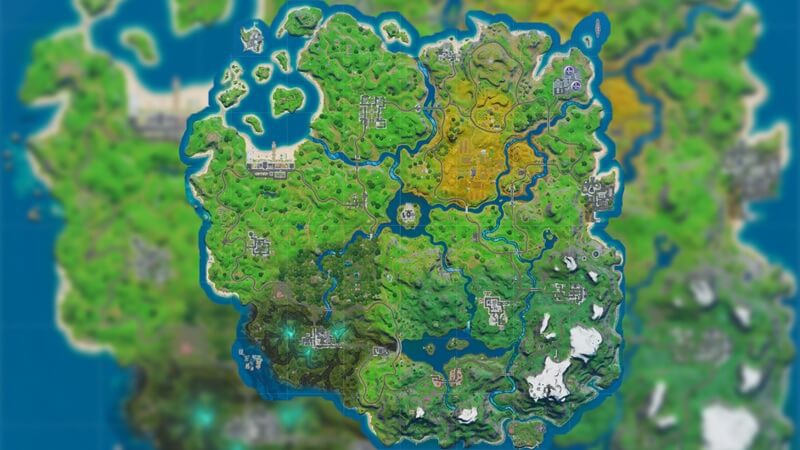
Typical Software Stack for Fortnite Map Dev
Developers building Fortnite maps with Unreal Engine typically combine several tools across modeling, rendering, scripting, and collaboration. When running on a remote GPU server, all of these can be accessed with full performance via RDP or browser-based remote access.
# Fortnite Map Development — Typical GPU Server Toolchain

rendering_engine:
  - Unreal Engine 5         # Nanite + Lumen rendering
  - UEFN                    # Unreal Editor for Fortnite

asset_creation:
  - Blender / Maya          # 3D modeling & rigging
  - Substance Painter       # PBR texture authoring

version_control:
  - Git / Perforce          # Asset versioning & team sync

automation:
  - Macro Recorder         # Repeatable input simulation

collaboration:
  - Discord / Slack        # Live communication during tests

server_access:
  - protocol: RDP
    resolution: "2560x1440"
    gpu_passthrough: true
Why You Need an Unreal Engine Dedicated Server
Local hardware imposes hard limits on what's possible in UE5 development. GPU memory bottlenecks, thermal throttling, and lack of persistent uptime make collaborative map development painful at scale. Switching to professional game server hosting eliminates these constraints — a single unreal dedicated server handles editor, rendering, and multiplayer sessions simultaneously.
Local Development ✗
- Expensive upfront hardware cost
- VRAM limits on complex scenes
- Lag during Nanite / Lumen rendering
- No persistent multiplayer test env
- Cannot scale with team size
GPU Dedicated Server ✓
- High VRAM: no crash on dense scenes
- Full Nanite + Lumen performance
- Stable unreal engine multiplayer server test sessions
- Remote team access, 24/7 uptime
- Scalable — upgrade GPU on demand
Observed Results
Developers report 2–3× faster rendering workflows when switching from local hardware to a dedicated GPU server — at comparable or lower monthly cost than financing equivalent hardware. The same machine functions as both a rendering server for asset work and a gaming server for live test sessions.
Case 1 — Indie Fortnite Creator: High-Detail Custom Map
Map Development on a Dedicated GPU Server
Independent creator building a high-detail "Castle Night" custom Fortnite map
Problem
Working on a high-detail custom Fortnite map with dense Lumen lighting and complex asset environments caused repeated crashes on local hardware. VRAM was the hard ceiling — UE5 would exhaust it mid-session, forcing restarts and losing unsaved progress.
Solution — Dedicated GPU Servers
The creator deployed a P1000 unreal dedicated server for basic compatibility testing and a T1000 for active development sessions. Both machines ran UEFN and UE5 remotely with zero crashes.
P1000 GPU Dedicated Server
| Key | Value |
|---|---|
| cpu | Eight-Core Xeon E5-2690 |
| cuda_cores | 640 |
| GPU vram | 4 GB GDDR5 |
| fp32_performance | 1.894 TFLOPS |
T1000 GPU Dedicated Server
| Key | Value |
|---|---|
| cpu | Eight-Core Xeon E5-2690 |
| cuda_cores | 896 |
| GPU vram | 8 GB GDDR6 |
| fp32_performance | 2.5 TFLOPS |
Resource Usage During Active Map Development
Screenshot: Unreal Editor for Fortnite running remotely on a P1000 dedicated GPU server, developing the "Castle Night" custom map.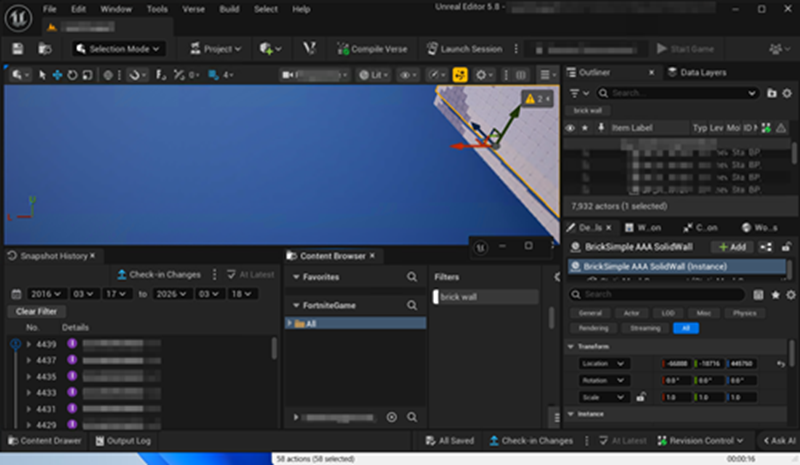
Screenshot: Task Manager on the P1000 server: CPU at 3%, GPU at 6%, temperature at 32°C — well within thermal limits during active development.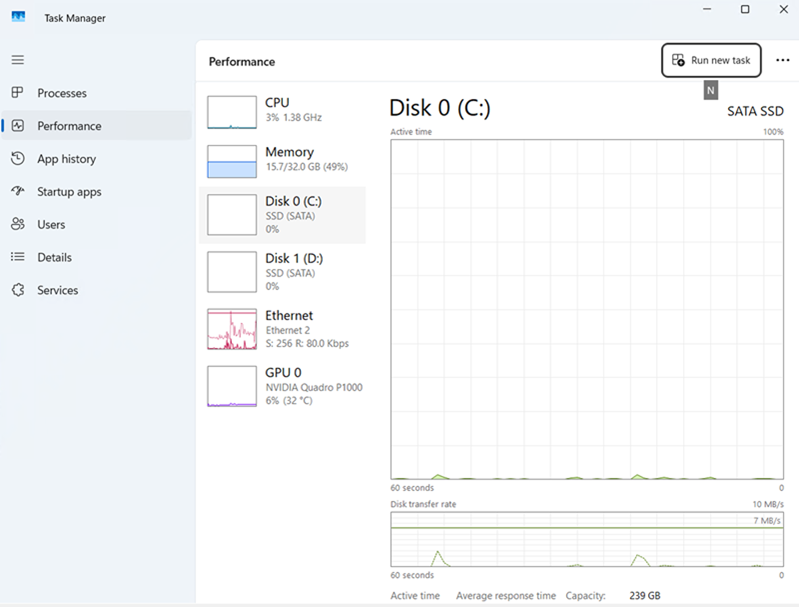
Results
| Metric | Value |
|---|---|
| Rendering Speed | 3× faster |
| Crashes (6h session) | 0 |
| GPU Temp (idle) | 32°C |
| GPU Load | 6% |
💡 Automation Tip
Macro Recorder can be used on the server to automate repetitive tasks — batch asset placement, repeated testing sequences, or input macros for consistent map iteration. It records mouse + keyboard inputs and replays them on demand.
Case 2 — Automated Fortnite Session on GPU Server
24/7 Automated Session for Map Testing & Engagement
Independent creator running persistent in-game activity inside a Fortnite Creative map
Challenge
The client needed a reliable way to keep a Fortnite session running continuously to maintain persistent activity inside a custom Creative map, simulate repeated player interactions for testing, and avoid interruptions caused by local PC sleep, crashes, or network instability. Running the game locally was inefficient — especially for long-duration sessions and repetitive tasks.
- Maintain persistent 24/7 in-game activity inside a custom Creative map
- Simulate repeated player actions for testing and engagement metrics
- Avoid interruptions from local PC sleep modes, hardware failures, or ISP drops
Solution — RTX 4060 Dedicated GPU Server
The client deployed an RTX 4060 dedicated GPU server and configured a single Fortnite instance running continuously with Macro Recorder automating player inputs. This kind of game server hosting setup provides the persistence and uptime that local machines can't guarantee — stable remote access allowed monitoring and adjustments without interrupting the session.
# Automated Fortnite Session Setup
# Server: RTX 4060 Dedicated GPU | Map: Castle Night

server:
  gpu:    "RTX 4060"
  vram:   8GB
  uptime: "24/7"

session:
  instances: 1
  mode:       "Fortnite Creative"
  auto_rejoin: true

automation:
  tool: "Macro Recorder"
  actions:
    - movement_loop    # Player movement simulation
    - interaction_loop # Object/trigger interactions
    - map_entry        # Auto-rejoin on disconnect
  interval: 30s

remote_access:
  protocol: RDP
  monitoring: true
Resource Usage During Automated Session
# Task Manager — RTX 4060 Dedicated GPU Server
# Mode: Automated 24/7 Fortnite session

CPU Usage:       29%      # Higher due to game loop + macro
GPU Usage:       42%      # RTX 4060, 8 GB GDDR6
GPU Temperature: 54°C    # Within normal operating range
Session Status:  Running # Continuous — no manual input
Duration:        72h+    # No crashes, no intervention
Screenshot: Fortnite Creative session running 24/7 on the RTX 4060 dedicated GPU server — fully automated via Macro Recorder, no manual intervention required.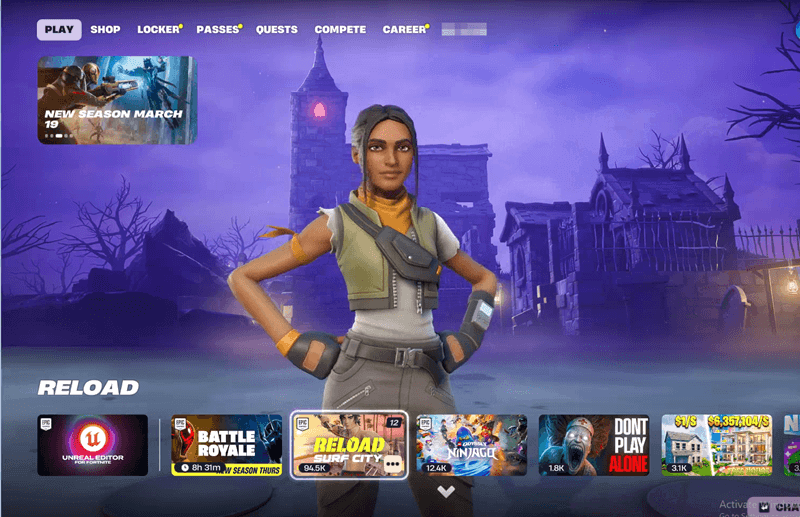
Screenshot: GPU usage at 42%, CPU at 29%, temperature at 54°C — stable and within normal operating range across a 72h+ continuous automated session.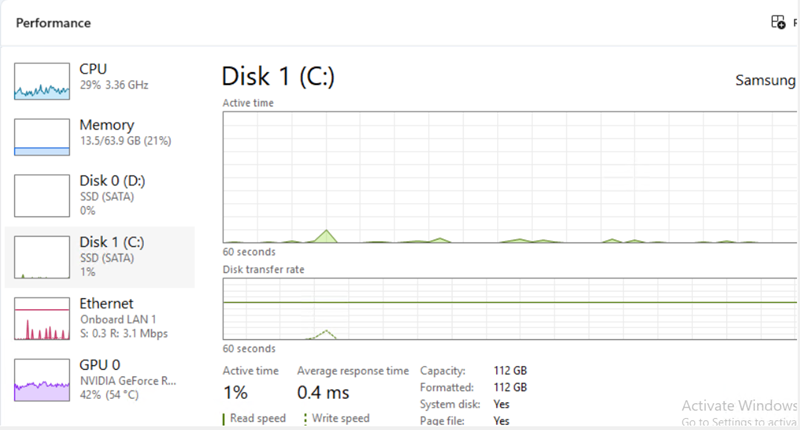
Results
| Metric | Value |
|---|---|
| Continuous Session | 72h+ |
| Manual Interventions | 0 |
| GPU Temp (load) | 54°C |
| GPU Utilization | 42% |
- ✅ 24/7 uninterrupted Fortnite session with zero manual input
- ✅ Consistent in-game activity without local PC dependency
- ✅ Reduced hardware strain on local devices
- ✅ Improved efficiency for repetitive gameplay testing scenarios
How to Choose the Right Unreal Engine Server
GPU selection directly determines what's achievable in UE5. Below is a full comparison of available configurations — from budget-compatible options to cinematic-grade rendering hardware.
| GPU | VRAM | RT Cores | Tensor Cores | Price / mo | Level | Best For |
|---|---|---|---|---|---|---|
| P1000 | 4 GB | — | — | $64+ | Budget | Low-res UE projects, basic compatibility testing |
| T1000 | 4 GB | — | — | $99+ | Budget | Small-scale UE testing, low VRAM scenes |
| RTX 3060 Ti | 8 GB | 38 | 152 | $108+ | Entry | Light UE scene creation, small-scale projects |
| RTX 4060 | 8–12 GB | 30 | 120 | $89+ | Entry | Indie developers, small-to-medium maps |
| RTX 5060 | 12 GB | 36 | 144 | $113+ | Entry | 2K ray tracing, streaming and teaching demos |
| RTX A4000 | 16 GB | 48 | 192 | $209+ | Pro | 3D scene design, moderate ray tracing workloads |
| RTX Pro 4000 | 16 GB | 36 | 144 | $159+ | Pro | Stable, cost-effective for most 3D production needs |
| RTX A5000 | 24 GB | 84 | 336 | $269+ | Pro | Mid-to-large projects, standard studio choice |
| RTX Pro 5000 | 24 GB | 48 | 192 | $269+ | Pro | Mid-to-large projects, stable studio pipelines |
| RTX 4090 | 24 GB | 128 | 512 | $409+ | Top-Tier | 4K ray tracing, hardcore gaming, photoreal visuals |
| RTX 5090 | 48 GB | 112 | 448 | $278+ | Top-Tier | Cinematic digital twins, 4K sequence rendering |
| RTX A6000 | 48 GB | 84 | 336 | $274+ | Top-Tier | Extreme multi-instance, UE heavy scenes simultaneously |
| RTX Pro 6000 | 48 GB | 72 | 288 | $479+ | Top-Tier | Film-level rendering, large-scale scene visualization |
Explore the detailed configurations and prices of the Unreal Engine GPU Servers.
Key Hardware Factors for Unreal Engine Workloads
Three hardware variables directly determine what UE5 can do on a remote server. Understanding them helps you avoid over-spending or under-provisioning.
RT Cores — Ray Tracing Quality
Determines real-time ray tracing fidelity. Essential for UE5 Lumen — without dedicated RT cores, lighting and reflections are heavily software-fallback only.
→ RTX 4090 leads (128 cores)
Tensor Cores — DLSS & AI Upscaling
Enable DLSS super-resolution, which boosts FPS and reduces rendering load. Critical for cloud-based workflows where streaming adds latency.
→ RTX 4090 leads (512 cores)
NVENC — Stream Latency
Hardware video encoder on the GPU. Affects real-time streaming latency when accessing UE remotely. Better NVENC = smoother remote editing experience.
→ Present on all RTX GPUs
⚠️ Avoid data center GPUs for UE workflows
GPUs like A100 / H100 lack display output and are not optimized for real-time 3D interaction without proper virtualization layers. Use RTX workstation or consumer GPUs for UEFN and Fortnite map development workflows.
Decision Matrix
- Rendering speed → GeForce RTX 4090 / 5090 — Superior real-time performance for use as a rendering server: fast iteration, high FPS, best for interactive editing and 4K demos.
- Stability & large projects → RTX Pro / A-Series — Best for long production cycles, large-scale environments, and stable unreal engine game server deployments in studio pipelines.
- Multiplayer testing → RTX 4060 / A5000 and above — Running a persistent unreal engine multiplayer server alongside the editor requires consistent GPU headroom; 12–24 GB VRAM recommended.
- Multi-instance usage → High VRAM GPUs (24–48 GB) — Running multiple UE clients simultaneously as a gaming server requires ≥24 GB VRAM for stable operation.
- Budget / compatibility testing → P1000, T1000 — Sufficient for basic UE compatibility checks, low-cost multi-instance setups, and prototyping on a game server hosting plan.
Why GPU-Mart for Unreal Engine Hosting
GPU-Mart's dedicated server infrastructure is purpose-built for GPU-intensive workflows. Whether you need a high-fidelity rendering server for UE5 asset work, a stable unreal engine multiplayer server for playtesting, or scalable game server hosting for a growing team — each configuration ships with full root access, unlimited bandwidth, and 24/7 in-house support.
- ⚡ Up to 4× GPUs with NVLink
- 🖥️ 4 GB – 80 GB VRAM configs
- 🌐 Pure USA IP network
- 📡 Unlimited bandwidth
- 🔑 Full root access
- 💬 24/7 in-house support
FAQ
What is an Unreal Engine dedicated server?
A remote server used to host multiplayer sessions, rendering tasks, and development environments independently from local machines. It allows developers to run Unreal Engine continuously, collaborate remotely, and handle workloads that exceed local hardware capabilities — with no physical machine required on-site.
Do I need a GPU for Unreal Engine server hosting?
Yes — especially for Fortnite map development and rendering workloads. UE5 features like Nanite geometry streaming and Lumen global illumination require GPU acceleration to run at usable frame rates in the editor.
A dedicated rendering server with a modern RTX GPU makes remote UE5 editing practical and productive.
Can I run multiplayer tests on a gaming server?
Yes. A gaming server from GPU-Mart can be configured as a full unreal engine multiplayer server. You can run multiple game instances simultaneously, simulate player connections, test network conditions, and validate gameplay logic — all from a single persistent machine with 24/7 uptime.
What is the difference between a rendering server and a game server?
A rendering server handles compute-heavy tasks: 3D scene rendering, visual effects, and offline asset processing — GPU utilization stays high but the workload is largely non-interactive. A gaming server (or game server hosting environment) manages real-time multiplayer sessions, player state, and networked logic where latency matters. With GPU-Mart dedicated servers, a single machine can handle both workloads simultaneously — which is exactly how most UE5 developers use them.
What is the difference between an unreal dedicated server and a gaming server?
An unreal dedicated server refers specifically to the server-side binary compiled from your UE project — it runs the game simulation headlessly and manages client connections. A gaming server is a broader term for any remote machine used to run multiplayer sessions. On GPU-Mart, both use cases run on the same GPU hardware: the difference is purely in how you configure the software stack on top.